Body
Step 1 – Go to passwordreset.microsoftonline.com
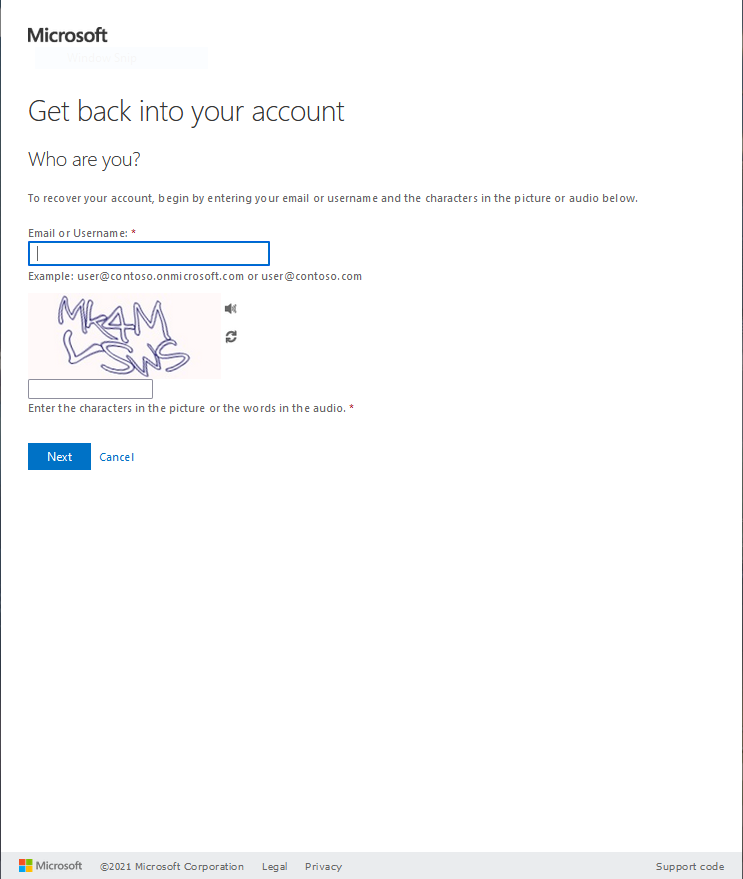
The first step is to head on over to passwordreset.microsoftonline.com, where you'll begin the steps to reset your password. You should see a page that looks like this:
Step 2 – Enter your email address
You'll notice that it first asks you for your email address. You'll need to enter your entire University email, including the "@pointpark.edu" part, in order to continue.

Step 3 – Answer the captcha
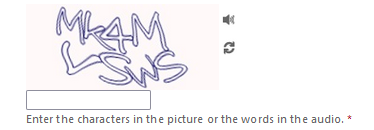
Next, it'll ask you to answer a captcha. Every captcha will be different, and there is a refresh button if you are struggling with the one you are currently given.
Step 4 – Verify your identity
Once you've answered the captcha, it will need to verify your identity via Multifactor Authentication in order to continue.
Step 5 – Create a new password
Finally, you'll get to the page where you need to enter a new password. Please keep the following password requirements in mind when creating your new password:
- Password length of at least 14 characters
- Must contain at least one uppercase letter (A through Z)
- Must contain at least one lowercase letter (a through z)
- Must contain at least one number (0 through 9)
- Must contain at least one special character (&. !, @, #, etc.)